Manage Parent Ads (Advisers)
Review, approve, deny, and manage parent-submitted ads.

Written by Alex Reyes
Updated at April 15th, 2026
Table of Contents
🎓 Managing Parent Ads in Your Yearbook Project
As a yearbook adviser, you are the only team member who can review and manage ads submitted by parents.
To begin managing ads, click the "Parent Ads" button from your project dashboard.
📂 Ad Status Categories
You will see four categories that organize ads based on their current status.
🕒 Pending
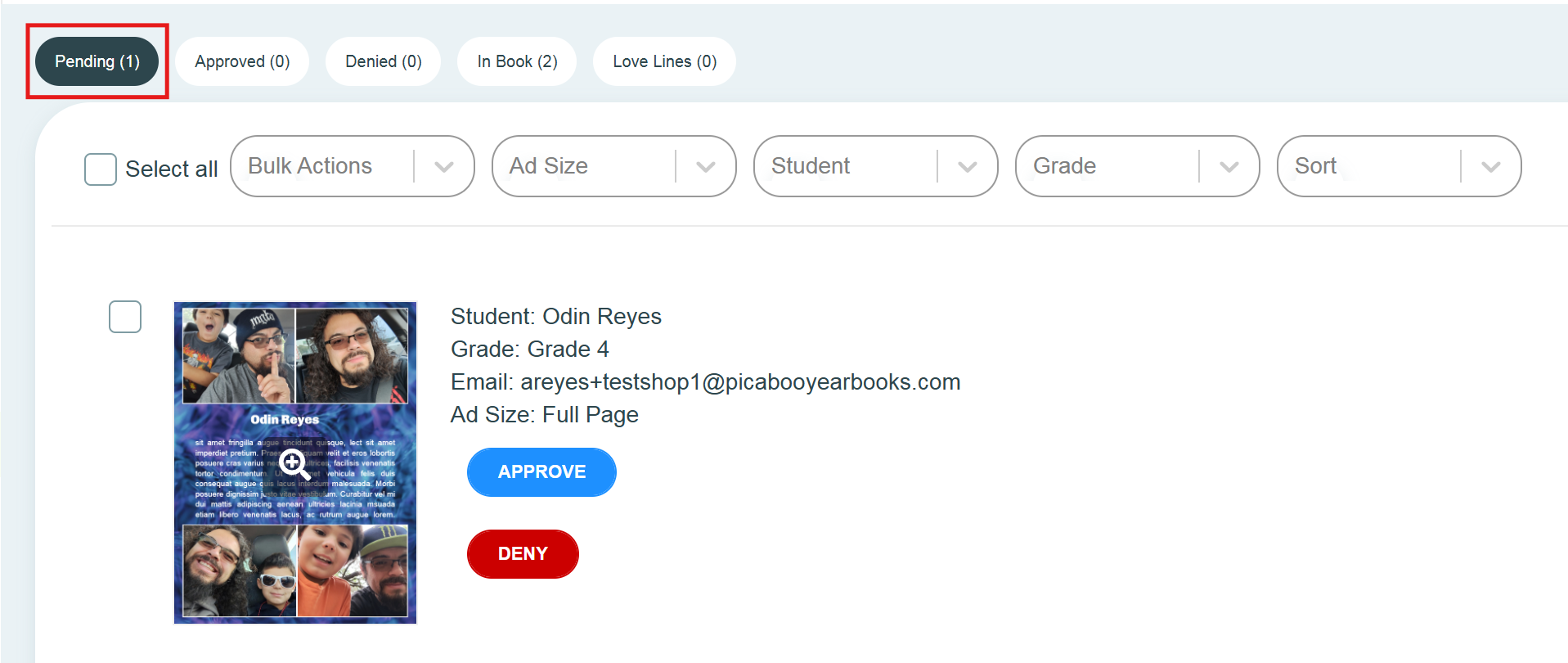
Pending ads are ads that parents have purchased and submitted for review.
When reviewing:
- Check for spelling errors
- Confirm images display correctly
- Ensure content is appropriate
Actions available:
- Approve — moves the ad to the Approved category
- Deny — sends the ad back to the parent for edits
✅ Approved
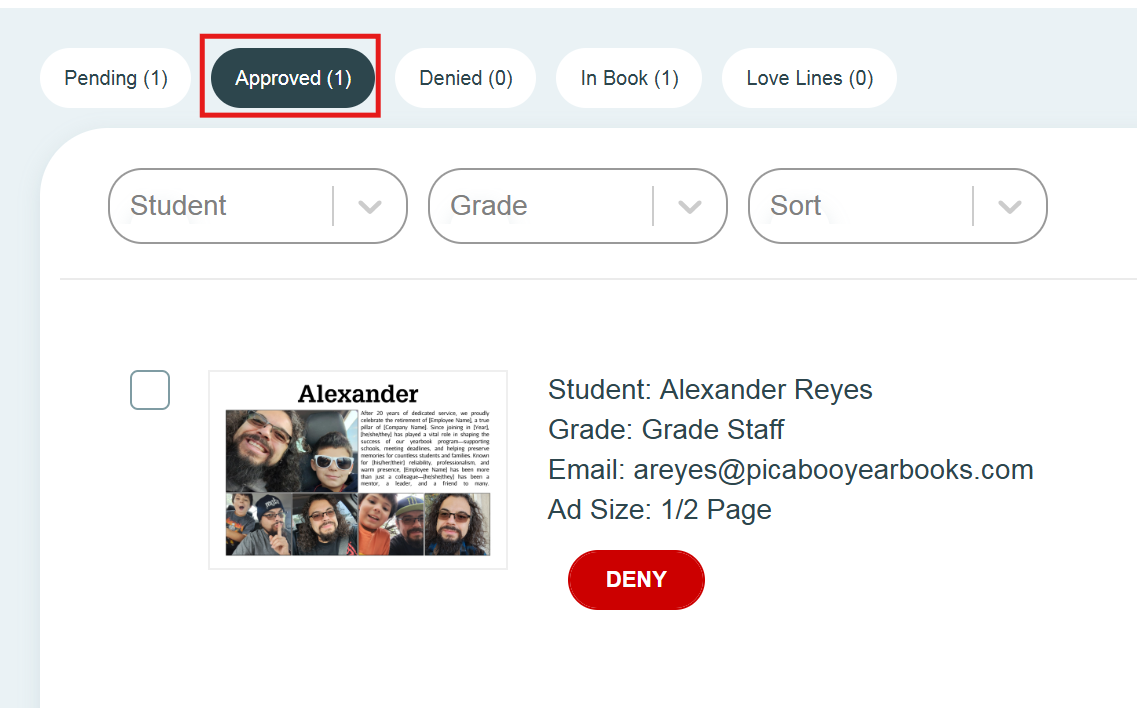
When you click Approve, the ad moves to the Approved category.
From here:
The ad is ready to be placed into an ad section.
Once placed on a page, it will automatically move to In Book status.
❌ Denied
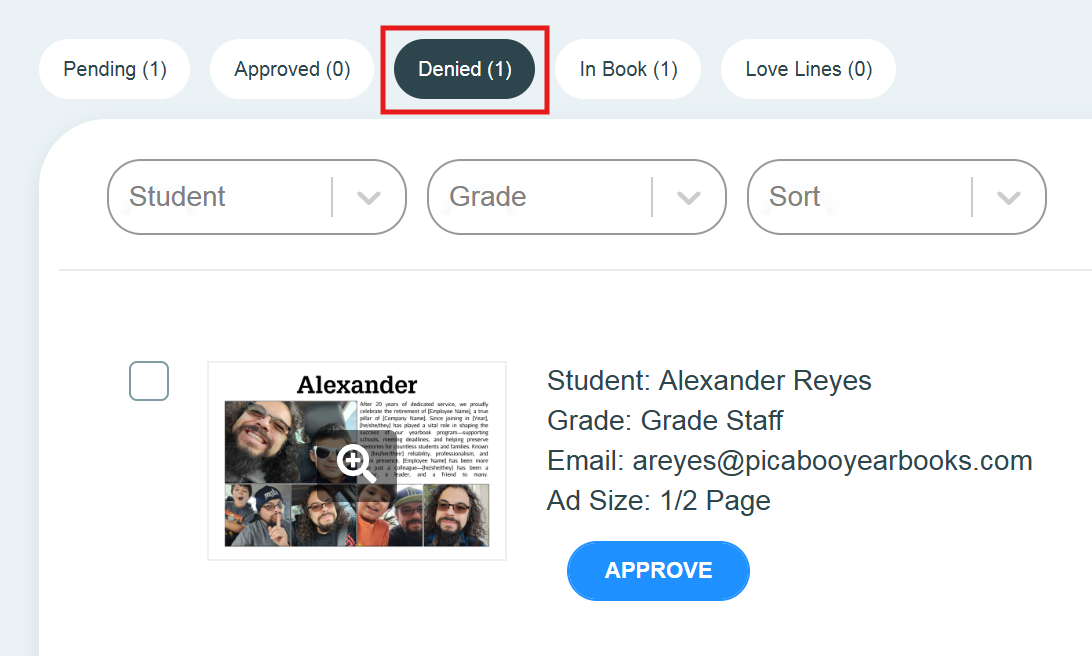
When you click Deny, a Deny Ad modal appears.
This modal allows you to:
- View ad details
- Enter a reason for denial
-
Provide instructions for correction
Click Deny & Send to:
- Email the parent automatically
- Provide them with a link to edit their ad
-
Return the ad to them for correction
Status behavior:
- The ad remains in Denied until the parent edits and resubmits it.
- Once resubmitted, it moves back to Pending for review.
📘 In Book
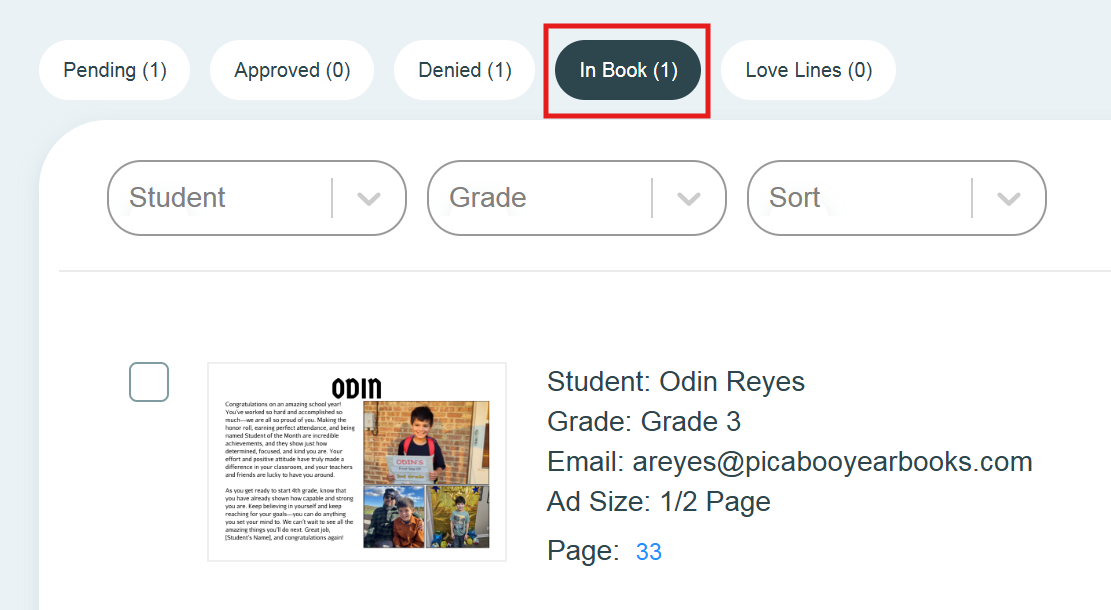
When an approved ad is placed on a page, it moves to In Book.
⚠️ Important:
Ads in this category cannot be denied while they are placed on a page.
To deny an in-book ad, you must first remove it from the page.
🔎 Sorting and Filtering Ads
If you have many ads to review, use the dropdown menus in the top-right corner to sort or filter.
You can filter by:
- Ad size
- Student name
- Grade
After filtering, results can be sorted in alphanumeric order.
✏️ Editing an Ad After Approval (Parent Requests Changes)
If a parent requests edits after submitting an ad:
The parent must contact the yearbook adviser.
The adviser will locate the ad in one of two places:
- Approved
- In Book
Then:
If the ad is In Book
- Remove the ad from the page first.
- Once removed, it can be denied.
If the ad is Approved (not yet placed)
Open the ad settings.
- Go to Approved Ads.
-
Click Deny.
When denying:
Enter a reason such as Parent requested correction.
Click Deny & Send.
Result:
- The parent receives an email with your note.
- They can edit and resubmit their ad.
- The ad returns to Pending for review.